 Leafprint
Installation
Put the pixel on your site and start learning
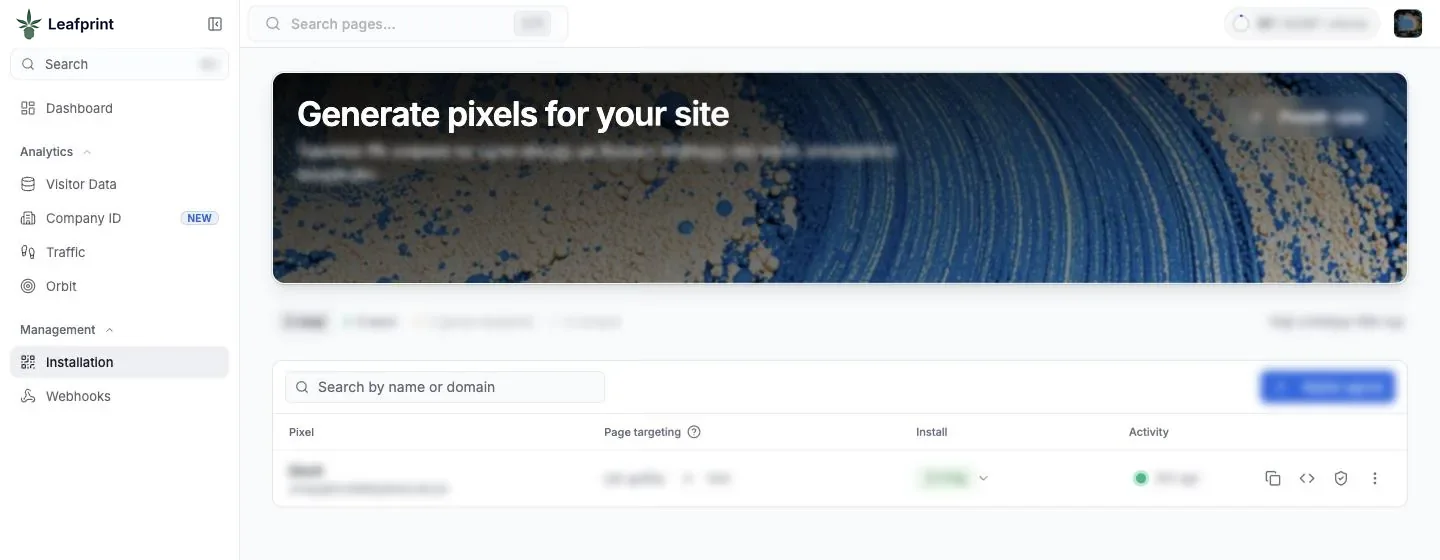
Installation is the area of the portal where you get your pixel. It is one script tag, and it is usually the fastest part of getting started.
One line of code
Your portal gives you a snippet that looks like the example here, with your own pixel address. Add it to every page you want to measure, ideally through your site template or tag manager so it does not have to be added page by page.
Whoever manages your website can usually do this in one sitting. If you work with Gold Standard, our team can help.
The snippet
Your portal gives you your own version of this line. Add it to your template or tag manager.
<script src="https://YOUR-PIXEL-URL/p/YOUR-ID.js" async></script>
Before you turn it on
Update your privacy policy first. It should say that you use a visitor identification pixel, describe what it records, explain that visits may be matched to information held by data providers, and tell people how to opt out or request deletion. Have counsel review the wording, since requirements vary by state.
If your site uses a cookie or consent banner, decide how the pixel should behave within it, and check your content security policy. A strict policy will block any script it does not list, so your pixel address may need to be added to it.
Where to place it
Put it on your main website first: the homepage, location pages, deals, blog, and any landing pages used by campaigns. If your menu runs on a separate platform or domain, check whether that platform allows custom scripts. Some do not, and in that case the pixel only sees visits on the pages you control. We do not promise support for any specific menu provider, so confirm it with the provider directly.
How to test it
- Load a page with the pixel in place, then check your browser's developer tools to confirm that the script loads without an error.
- Look in the portal to confirm that activity is starting to appear.
- Check key pages such as your location pages and campaign landing pages, since templates sometimes differ.
- Check your site speed. The script loads asynchronously, so it should not hold up your page, but confirm it after any tracking change.
After installation
Give it time to collect data before drawing conclusions. A low-traffic site will build a picture more slowly than a busy one. Once data is coming in, set up a weekly check of the dashboard and Traffic, and read what to do with identified visitors so your team has a plan for the results.
If you redesign your site or change platforms, put checking the pixel on the launch checklist. It is easy to lose a tracking script in a template change and not notice for weeks.
Common questions
Will the pixel slow down my site?
It loads asynchronously, so it should not hold up the page. It is still good practice to check your site speed after adding any third-party script.
Does it work on my menu platform?
That depends on whether the platform allows custom scripts on its pages. Ask your provider. If it does not, the pixel can only see the pages you control.
Why was my script blocked?
A strict content security policy can block scripts it does not list. Add the pixel address from your portal to the policy, then test again.
See it on your own traffic
We will walk through the portal, the pixel, and how consent works, then answer questions about your stores and systems.